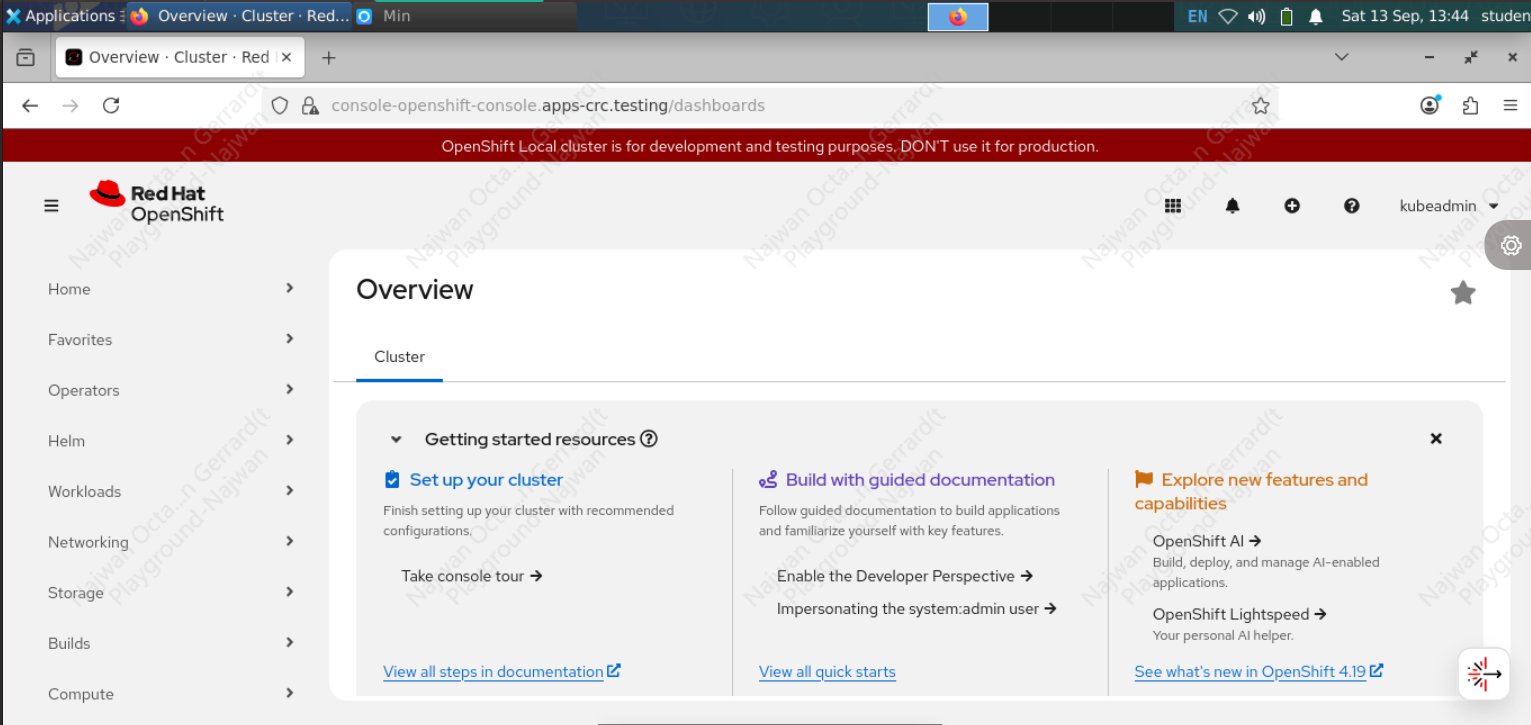
Set Up Red Hat OpenShift Locally with CRC
OpenShift is a Kubernetes-based platform developed by Red Hat to help organizations build, run, and manage modern applications at scale. Kubernetes provides the core container orchestration engine; OpenShift adds enterprise security controls, developer tooling, CI/CD integrations, and an integrated management experience.
-
Higher developer productivity
- Focus on writing code and deploy with a single workflow.
-
Simpler administration
- Built-in security through RBAC, image scanning, and network policies.
- Integrated monitoring, logging, and scaling.
-
Flexible and portable
- Run in a public cloud, a private data center, or on a laptop.
- Support hybrid-cloud and multicloud architectures.
-
Complete ecosystem
- Ready-to-use catalogs for languages, frameworks, and middleware.
- Operator Framework support for automating complex applications.
-
Installation and operational complexity
- More involved than a vanilla Kubernetes installation.
-
Licensing cost
- Enterprise editions require a Red Hat subscription.
-
Resource requirements
- Production deployments require significant hardware and server capacity.
OpenShift therefore offers more than container orchestration: it provides an application platform that supports fast delivery, consistent security standards, and operational stability.
- Minimum RAM: 9 GB (16 GB recommended)
- CPU: 4 cores
- Storage: 35 GB
1. Register a Red Hat OpenShift Account
- Create a Red Hat account.
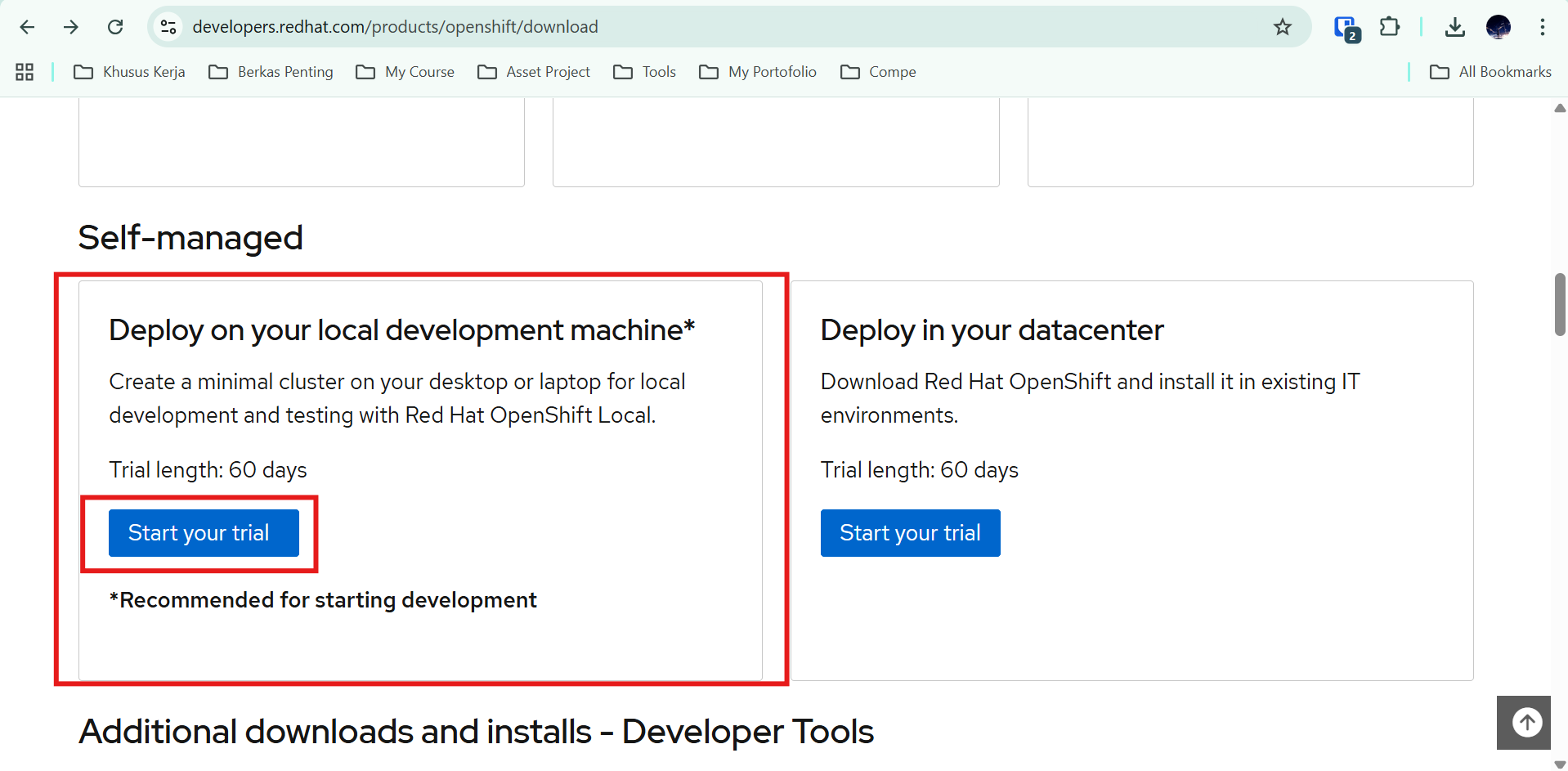
- If you have not used the account before, start the Red Hat OpenShift free trial from Red Hat Developer.
- Scroll to "Self Manage", select "Deploy on your local development machine", and select "Start your trial".
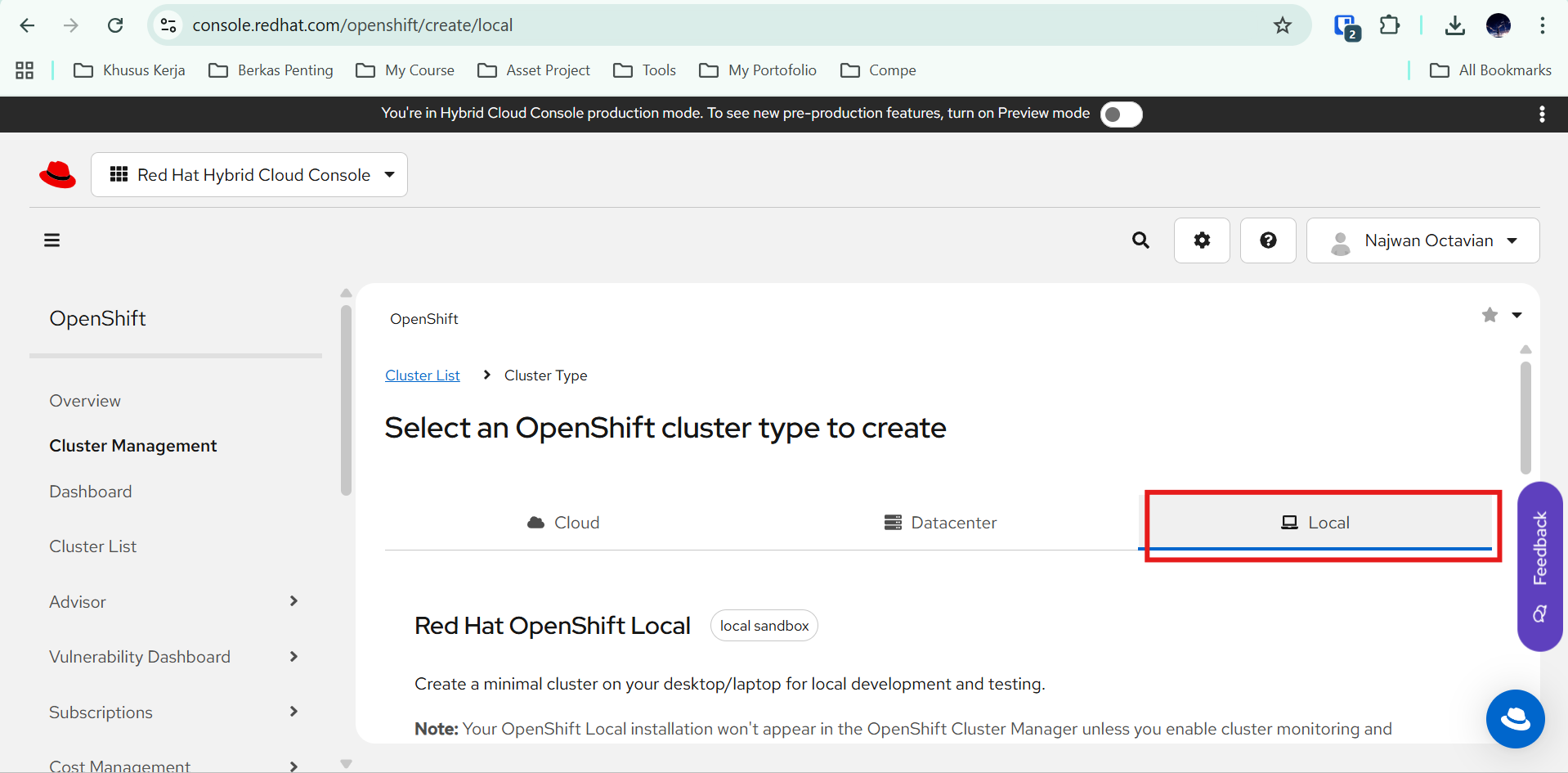
- Select "Local".
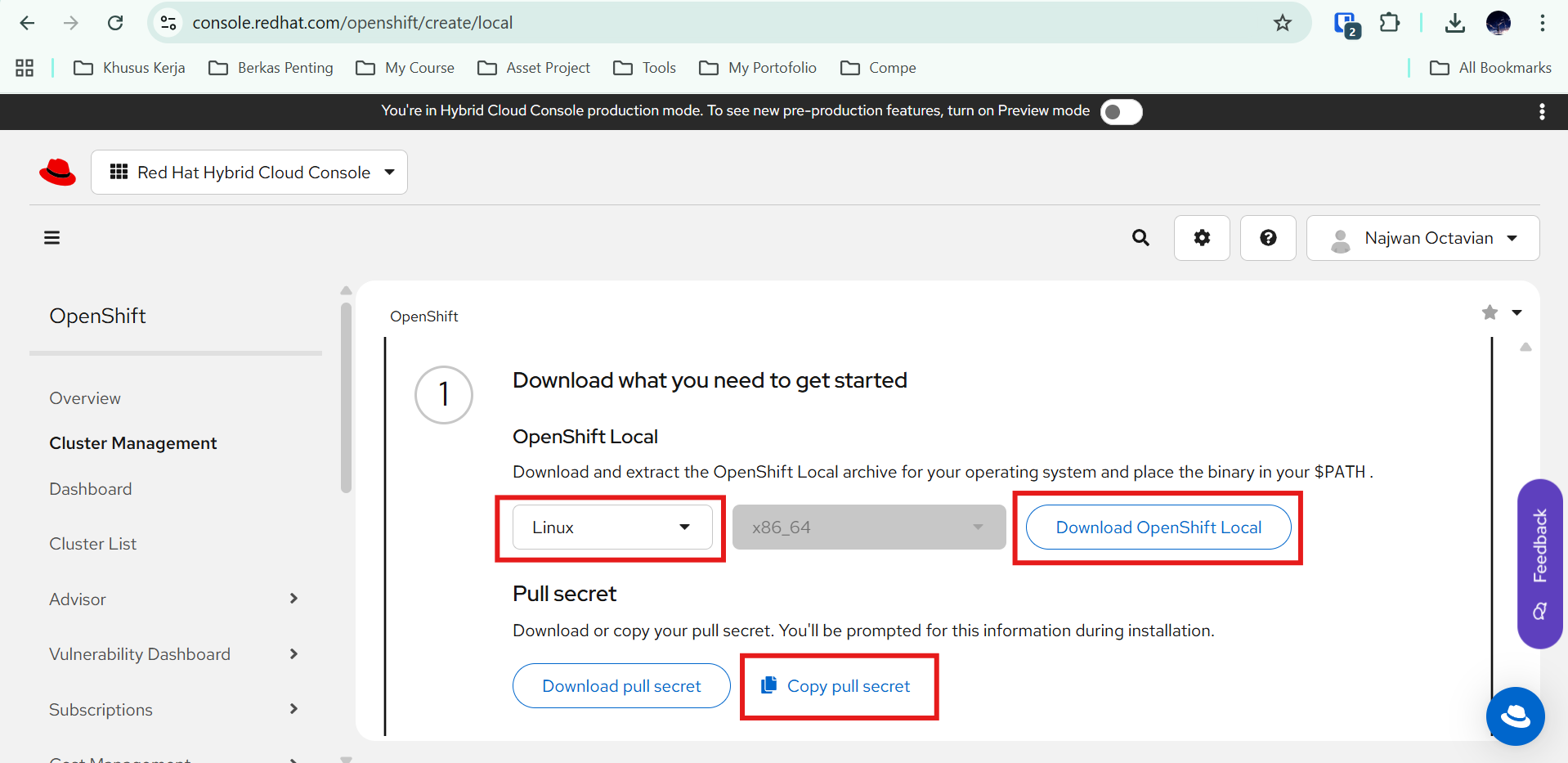
- Scroll to "OpenShift Local":
- Choose the operating system. This example uses Linux.
- Right-click "Download OpenShift Local" and copy the download link.
- Select "Copy Pull Secret".
2. Set Up OpenShift on a Laptop or VM
-
Sign in to a Linux laptop or VM with a non-root user.
-
Download OpenShift Local using the copied link. This example uses:
bashwget https://developers.redhat.com/content-gateway/rest/mirror/pub/openshift-v4/clients/crc/latest/crc-linux-amd64.tar.xz -
Extract the archive.
bashtar -xvf crc-linux-amd64.tar.xz cd crc-linux-amd64 -
Copy
crcto/local/binso it can be called from any directory.bashsudo cp crc /local/bin -
Run the setup command. CRC downloads the required images and applies the local configuration.
bashcrc setup -
Start OpenShift.
bashcrc start -
When prompted, paste the Pull Secret copied from the Red Hat dashboard. After startup completes, CRC displays the console URL and default credentials.
bashINFO A CRC VM for OpenShift 4.19.3 is already running Started the OpenShift cluster. The server is accessible via web console at: https://console-openshift-console.apps-crc.testing Log in as administrator: Username: kubeadmin Password: aTz4U-aaaa-iiii-uuuu Log in as user: Username: developer Password: developer Use the 'oc' command line interface: $ eval $(crc oc-env) $ oc login -u developer https://api.crc.testing:6443 -
Configure the OpenShift CLI environment.
basheval $(crc oc-env) -
Log in through the OpenShift CLI.
bash# Log in as the administrator oc login -u kubeadmin -p aTz4U-****-****-*** https://api.crc.testing:6443 # Log in as the default non-administrator user oc login -u developer -p developer https://api.crc.testing:6443
3. Open the OpenShift Console in a Browser
-
Check the cluster status.
bashcrc status -
Confirm that the output reports "Running" and "Starting".
bashCRC VM: Running OpenShift: Starting (v4.19.3) RAM Usage: 7.618GB of 10.95GB Disk Usage: 27.59GB of 32.68GB (Inside the CRC VM) Cache Usage: 29.84GB Cache Directory: /home/student/.crc/cache -
Copy the console URL displayed by
crc start.bashThe server is accessible via web console at: https://console-openshift-console.apps-crc.testing -
Open the URL in Firefox and sign in with the credentials displayed by
crc start.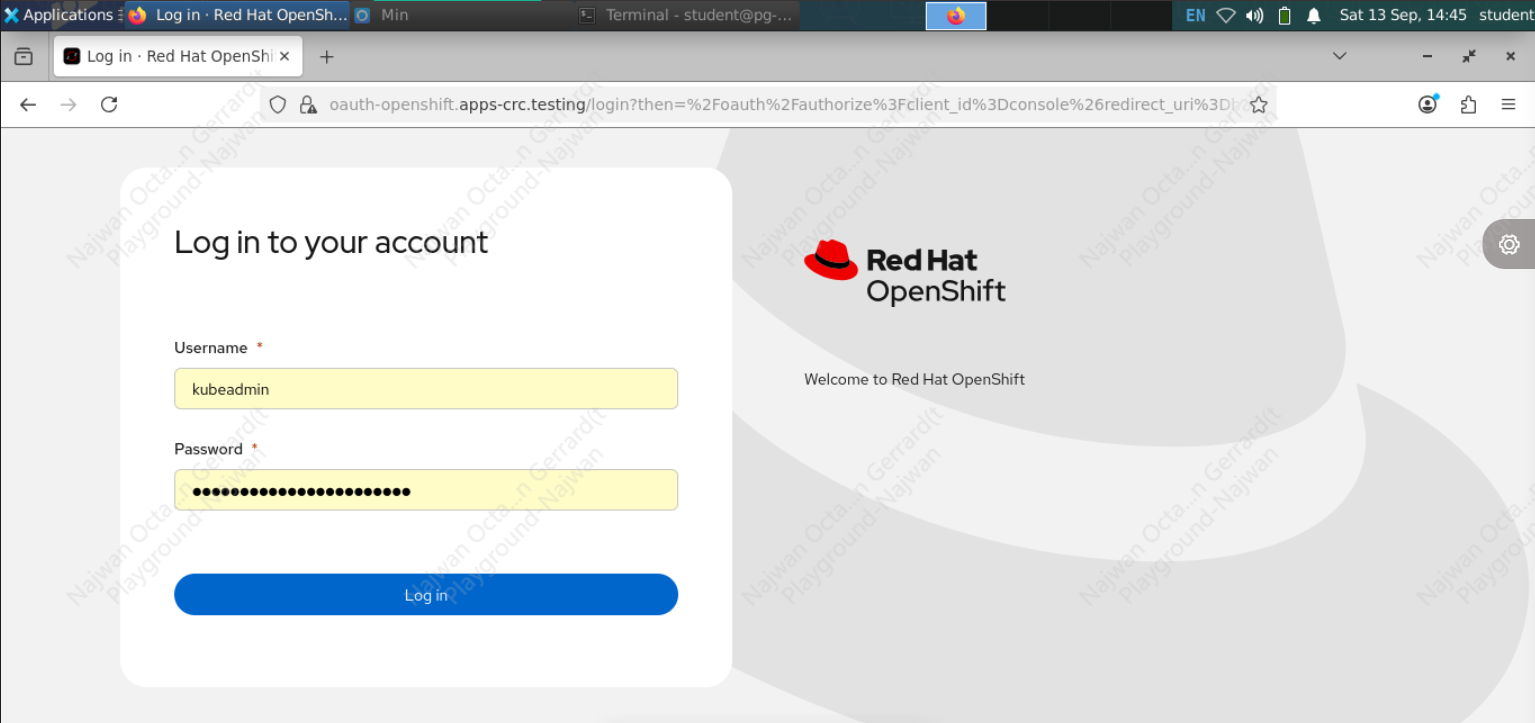
-
You can now configure the cluster and create deployments and pods in the same way as with Kubernetes.